
Almost every bank lets you download your statements yourself, any time, without calling anyone. The hard part is finding where they put the button, and choosing between the file types on offer. This guide covers both, with the steps for eight banks taken from each bank's own help pages.
Where banks keep statements
The menu names change from bank to bank, but statements nearly always sit in one of a few places:
- A Statements or Documents section in the main menu of the website, often next to tax forms and letters.
- The account page itself, behind a three dots or More button next to your card or balance.
- Your profile or settings, under a heading like Document manager.
If your bank is not listed below, the last section says how to find its own instructions.
Bank by bank
Each bank's steps below come from its own help pages, checked on 31 October 2026. Menus change, so if a name does not match what you see, the linked help page will have the current one.
Chase
On the website, open the Main Menu and choose Statements & documents, then pick the year and account. In the app, it sits under Profile & Settings, then Document manager. Chase says up to 7 years are available, depending on the account. Our step by step guide to downloading a Chase statement also covers the CSV download.
Bank of America
In Online Banking, open the Accounts tab and choose Statements & Documents. Statements come as PDFs, and you can view, print and download up to 18 months of them at any time. For a credit card, open the card's Account details page and choose the Statements & Documents tab, or in the app, select the card and then Statements & Documents under Account Management. See Bank of America's digital banking page and its credit card statements help.
Wells Fargo
Sign on to Wells Fargo Online and open Statements and Documents. Statements are PDFs: open one, then save it to your computer with a name ending in .pdf. Wells Fargo keeps statements for up to 7 years for most checking and savings accounts. See Wells Fargo's online statements help.
Capital One
On the website, sign in, select the account and click View statements. In the app, tap the account, scroll to the bottom of the page and tap Statements. Up to 7 years are available for active accounts, but only if you are signed up for paperless statements. See Capital One's online statements help.
Barclays
In the app, open Help/More on the home page, then Statements. In Online Banking, open the menu under your name, choose Online Statements and pick the account. Barclays has stored electronic copies of statements from July 2013 onwards. See Barclays' online statements help.
HSBC UK
In the app, select the account, tap View statements and choose the month. In online banking, choose Statements from the quick links menu, pick the statement type, then the year and month. Up to 6 years are available, as PDFs. If you want a CSV or Excel file instead, HSBC offers those from the list of transactions, not from statements. See HSBC's guide to getting a statement.
Monzo
In the app, go to Home, tap the three dots under your card and choose Bank statements. You pick a date range and a format: PDF, CSV or QIF. Pots are included. Our step by step guide to downloading a Monzo statement also covers business and closed accounts.
Wise
Open a currency or tap your initials, then choose Statements and reports. Each statement covers up to 365 days, so a longer stretch means more than one file. The website offers more formats than the app. See Wise's help page on downloading a statement.
Any other bank
Search your bank's help pages for "download statement" or "view statements". Every bank has one, and it will be more current than any guide written elsewhere, this one included.
PDF or CSV: which one do you need?
Most banks offer at least one of these, and many offer both.
A PDF is the statement as the bank formats it: your name and address, the account details, the opening and closing balance, and every transaction. It is the version landlords, lenders and visa offices usually ask for, because it looks the same everywhere and is hard to edit without it showing. Choose a PDF when someone needs proof.
CSV
A CSV is a plain table: one row per transaction, with columns for the date, the description and the amount. It has no letterhead and usually no balances at the top, but any spreadsheet can open it, and it is the easiest file to sort, filter and add up. Choose a CSV when you want to work with the numbers.
The other formats
You may also see XLSX (an Excel file, which works like a CSV), and QIF, OFX, MT940 or CAMT.053. Those last ones are made for accounting software. If you are not using accounting software, you can ignore them.
Picking the date range
Statements come in two shapes. Monthly statements are fixed: one file per statement period, already made for you. Custom statements let you choose any start and end date, sometimes with a limit on how long the period can be.
For tracking your spending, a calendar month is the simplest choice, because it lines up with rent, salary and most bills. For an application, check exactly what is asked for. "The last three months" usually means three full monthly statements, not a custom range ending today.
Checking the file before you use it
- Open it. Make sure it is not empty and covers the dates you chose.
- Check the account. If you have several accounts, or several currencies at Wise or Revolut, make sure you downloaded the one you meant. Some banks give each currency its own statement.
- Check the ends. The first and last transactions should fall inside your period, and a PDF's opening balance should match the previous statement's closing balance. Our guide to reading a bank statement explains each part.
- Store it safely. A statement shows your account details and where you spend. Keep it somewhere private, and delete copies you no longer need.
What to do with it next
If the statement is for an application, send the PDF as it is. Editing it, even to hide a line, can make it look tampered with.
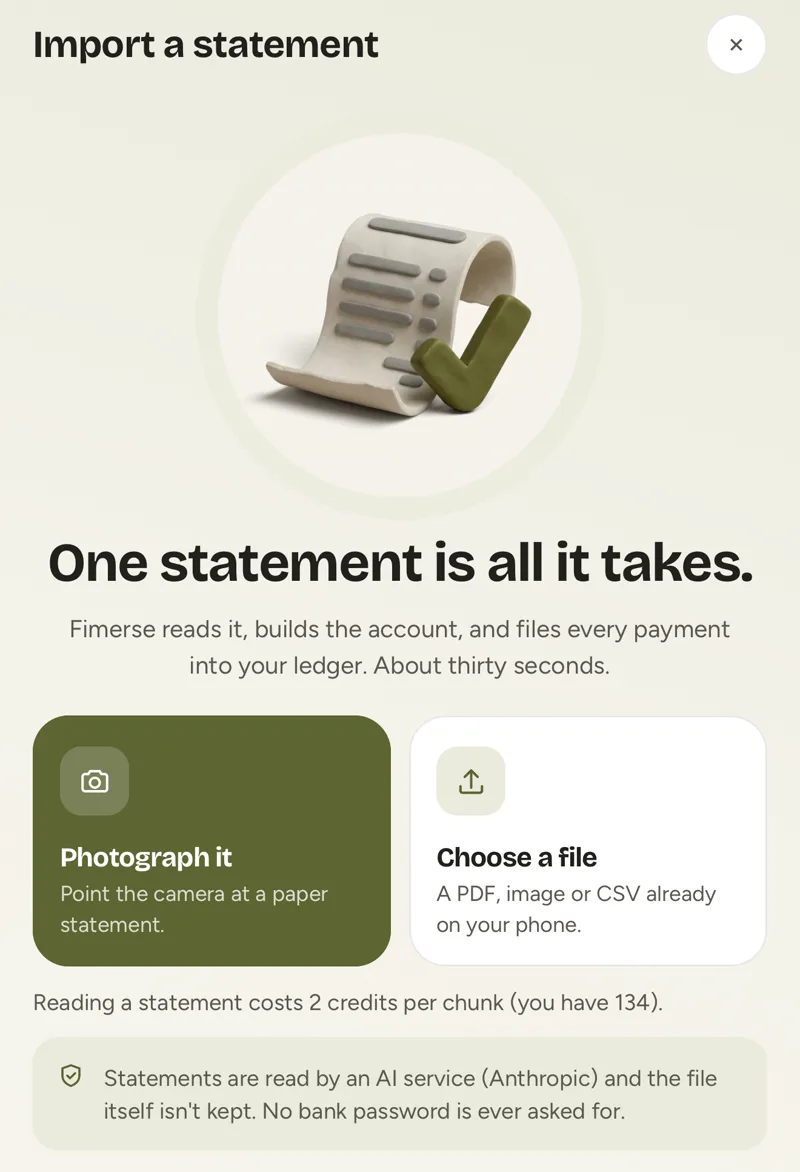
If it is for you, the point is to see where the money went. You can sort a CSV by category in a spreadsheet, or hand the statement to a tracker. On Fimerse Plus you upload it as a PDF, photo, CSV or text, and every transaction is read and sorted for you, with anything uncertain left for you to decide. If two statements overlap, possible duplicates are flagged for you to keep or remove, and the file is deleted once it has been read. If you would rather not use Plus, typing payments in by hand is free.
Questions people ask
Is a downloaded statement official?
Many banks say the statements in their app or website are original documents. Some organisations still want a stamped or posted copy, which you usually request from the bank. If in doubt, ask whoever needs it what they will accept.
Why is my statement a locked PDF?
Some banks protect statements with a password, often sent separately or based on details like your date of birth. The bank's help pages say what the password is. If a tool cannot open a locked file, download an unlocked copy if your bank offers one.